In an age where our smartphones are overflowing with countless photos and videos, those cherished memories often remain hidden, buried deep within digital archives. It’s a shame, isn’t it, that the moments we capture so diligently rarely see the light of day beyond a quick scroll? This is precisely where the digital frame steps in, transforming your favorite snapshots from forgotten files into a vibrant, ever-changing display right in your home or office. It’s more than just a picture frame; it’s a window to your life’s best moments, effortlessly rotating through a curated collection of joy, laughter, and adventure.
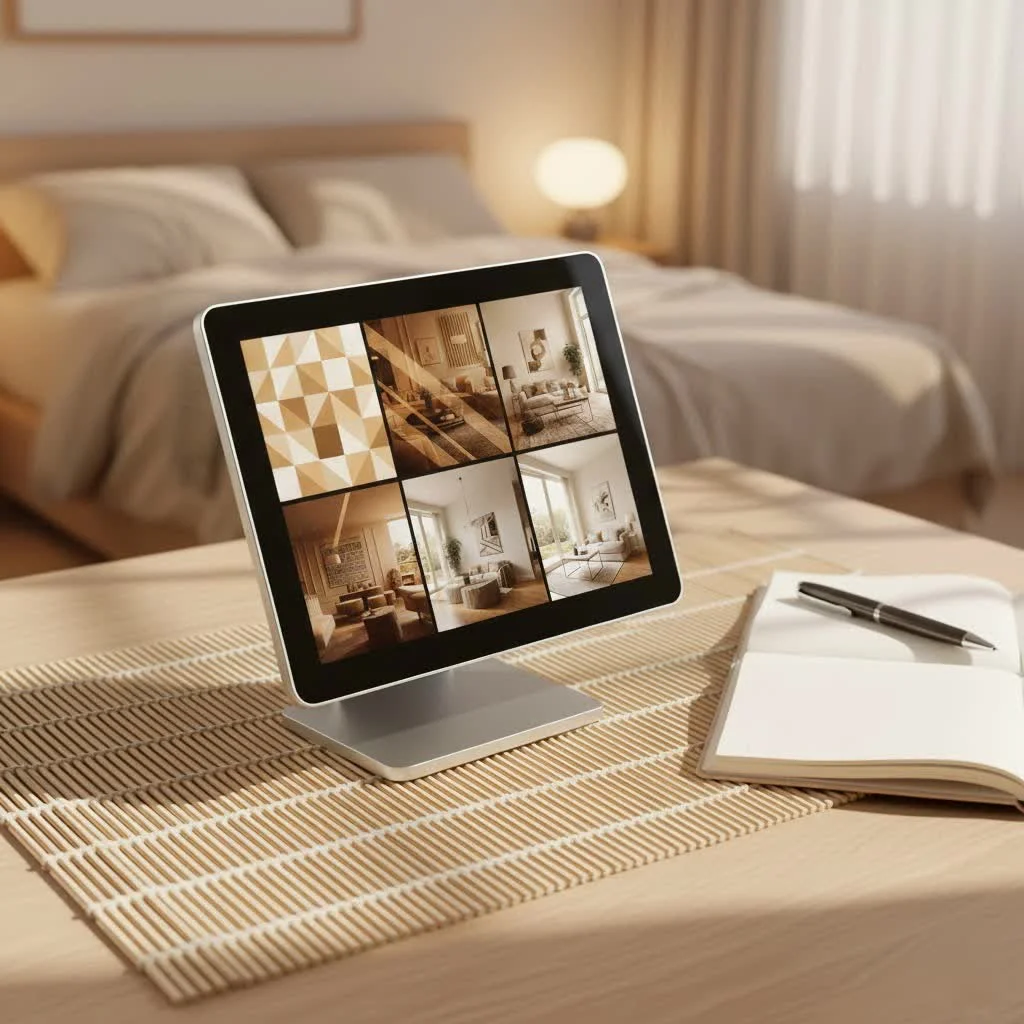
At WWMPA, we’ve spent over 15 years immersed in the world of digital frames, understanding every pixel and every feature, to help you make the most of this wonderful technology. Consider this your definitive guide to understanding, choosing, setting up, and troubleshooting your very own digital frame, ensuring your memories are always on display, just as they deserve to be.
What Exactly is a Digital Frame?
Simply put, a digital frame is an electronic device designed to display digital photographs and sometimes videos in a slideshow or static format. Unlike traditional photo frames that hold a single printed image, a digital frame can store hundreds, even thousands, of images and cycle through them automatically. Modern versions have evolved significantly, offering advanced features like Wi-Fi connectivity, cloud integration, and smart home capabilities, making them a central hub for your visual memories.
Choosing Your Perfect Digital Frame: Key Features to Consider
Selecting the right digital frame might seem daunting with so many options available, but focusing on a few core features will guide you to the perfect match for your needs and space.
Display Brilliance: Size, Resolution, and Screen Type
The heart of any digital frame is its display. You want your photos to look stunning, right?
- Screen Size: Digital frames come in a wide range of sizes, typically from 7 inches for a compact desk companion to over 15 inches for a prominent wall display. Consider where you plan to place the frame. A smaller size might be perfect for a bedside table, while a larger one could become a focal point in your living room.
- Resolution & Aspect Ratio: This is crucial for image clarity. While some budget frames might offer 800×600 pixels, aim for at least 720p (HD). For truly crisp, vibrant images that do justice to modern smartphone cameras, a 1080p (Full HD) or even 2K/4K resolution is ideal. Also, pay attention to the aspect ratio (e.g., 16:9 for widescreen, 4:3 for more traditional photo formats) to minimize awkward cropping.
- Panel Type & Coating: Look for frames with an IPS (In-Plane Switching) panel, as these offer wider viewing angles and more accurate color reproduction. An anti-glare or matte finish is also a fantastic feature, significantly reducing reflections and making your photos look more like traditional prints.
Storage & Seamless Connectivity
|
Our Picks for the Best Digital Frame in 2026
As an Amazon Associate I earn from qualifying purchases.
|
||
| Num | Product | Action |
|---|---|---|
| 1 | Digital Picture Frame, 15.6 Inch Large Frameo Digital Photo Frame WiFi, 32GB, 1920 * 1080 IPS HD Touch Screen, Tabletop&Wall-Mounted, Share Picture Video, Birthday, Wedding, for Mom |

|
| 2 | Skylight Frame – WiFi Digital Picture Frame Customer Support, Touch Screen Digital Photo Frame with Easy Setup, Photo Gifts for Parents and Grandparents - 10 Inch Black |
|
| 3 | Digital Picture Frame, 10.1\'\' Frameo Digital Frame Wifi, 32GB Memory, 1280*800 HD Touch Screen Digital Photo Frame, Wall Mountable, Auto-Rotate, Share Instantly, Wedding, Birthday Gifts for Women, Mom |
|
| 4 | Digital Picture Frame - 10.1\" HD Display AI Magic Frame, Touch Screen Digital Photo Frame with Easy Setup, Unlimited Cloud Storage, Gifts for Parents and Grandparents |
|
| 5 | 32GB FRAMEO 10.1 Inch Smart WiFi Digital Photo Frame 1280x800 IPS LCD Touch Screen, Auto-Rotate Portrait and Landscape, Built in 32GB Memory, Share Moments Instantly via Frameo App from Anywhere |
|
| 6 | Frameo 10.1 Inch WiFi Digital Picture Frame with 32GB Storage,1280 * 800P IPS HD Touch Screen,Send Photos/Videos from Your Phone Anywhere, Photo Gifts for Parents and Grandparents |
|
| 7 | Dragon Touch 10.1\'\' WIFI Digital Picture Frame - 1280*800 HD IPS Touch Screen Digital Photo Frame Display, Auto-Rotate, Share Photos/Videos Instantly via Free App Best Gifts for Birthday, Wedding, Mom |
|
| 8 | Dragon Touch 10.1\'\' WIFI Digital Picture Frame - 1280*800 HD IPS Touch Screen Digital Photo Frame Display, Auto-Rotate, Share Photos/Videos Instantly via Free App Best Gifts for Birthday, Wedding, Mom |
|
| 9 | Cordless Digital Photo Frame, 13.3 Inch ePaper Display, Tap-to-Print Technology, Wall Art Frame for Any Place and Everyone |
|
| 10 | BIGASUO Digital Picture Frame, 10.1\" Frameo Digital Frame WiFi with 32GB Memory, 1280x800 IPS Touch Screen, Send Photos/Videos from Your Phone Anywhere, Photo Gifts for Parents and Grandparents |
|
How you get your photos onto the frame and how many it can hold are vital considerations.
- Internal Memory vs. External: Most digital frames come with built-in storage, typically ranging from 4GB to 32GB, which is sufficient for thousands of photos. Many also include slots for external storage like USB drives or SD cards, allowing you to expand your collection easily.
- The Power of Wi-Fi and Cloud Integration: This is a game-changer. A Wi-Fi-enabled digital frame allows you to upload photos remotely via dedicated mobile apps or cloud services, often with unlimited storage options. This feature is a blessing for families, enabling loved ones to share new memories with your frame from anywhere in the world. Ensure the frame supports 2.4GHz Wi-Fi, as 5GHz isn’t always compatible.
Smart Features & Customization Options
Beyond just displaying photos, modern digital frames offer a host of intelligent functionalities.
- Motion Sensors & Auto On/Off: Some frames include motion sensors that automatically turn the display on when someone enters the room and off when it’s empty, conserving energy and ensuring your frame is always ready to greet you. You might also find auto on/off timers for scheduled operation.
- Slideshow Modes, Transitions, Video Playback: Customize your viewing experience with adjustable slideshow speeds, various transition effects, and the ability to play short video clips with sound. This adds another dimension to your visual storytelling.
- Calendar, Clock, and Smart Home Integration: Many frames double as useful home accessories, displaying the time, date, or even weather. Some can integrate with smart home ecosystems like Google Nest Hub or Amazon Echo Show, expanding their utility beyond just photos.
Design That Fits Your Space
A digital frame should complement your decor, not detract from it.
- Aesthetics and Build Quality: Digital frames come in various designs, from sleek, minimalist frames with metallic finishes to those that mimic traditional wooden frames. Choose a style that fits your personal taste and home aesthetic.
- Orientation and Mounting Flexibility: Most frames can be displayed in both landscape and portrait orientations, often with auto-rotate features. Some also come with wall-mounting kits, offering more versatility in placement.
Setting Up Your Digital Frame: A Step-by-Step Guide
Getting your new digital frame up and running is typically a straightforward process. Here’s how to do it efficiently:
Unboxing and Initial Power-Up
- Unpack Everything: Carefully remove your digital frame and all accessories (power adapter, stand, remote, manual) from the box.
- Connect Power: Plug the power adapter into the frame and then into a wall outlet. The frame should power on automatically or with a press of the power button. Allow a minute for it to boot up.
- Initial Setup Wizard: Most frames will guide you through a setup wizard upon first use. Follow the on-screen prompts, using the physical buttons or touchscreen to navigate.
Connecting to Wi-Fi: Your Gateway to Memories
For Wi-Fi-enabled frames, this is a crucial step to unlock their full potential.
- Access Network Settings: Navigate to the “Settings” or “Network” menu on your frame.
- Select Your Network: The frame will scan for available Wi-Fi networks. Select your home network from the list. Remember that most digital frames primarily support 2.4GHz Wi-Fi, so ensure your router is set up for this frequency.
- Enter Password: Use the on-screen keyboard or remote to enter your Wi-Fi password. It’s often case-sensitive, so type carefully.
- Confirm Connection: Once connected, you should see a Wi-Fi symbol and confirmation that the frame is online. If you encounter issues, try moving the frame closer to your router or restarting your router.
Loading Your Favorite Photos and Videos
This is where your memories come to life!
- From USB/SD Card: Insert your USB drive or SD card (pre-loaded with compatible JPEG, PNG, or even video files) into the designated slot on the frame. The frame usually detects the media automatically and starts a slideshow or prompts you to transfer files.
- Via Mobile App: For Wi-Fi frames, download the manufacturer’s dedicated app (e.g., Aura, Frameo) to your smartphone. Pair your frame using a unique code provided by the frame. From the app, you can easily select photos and videos from your phone’s gallery and send them directly to your frame.
- Cloud Services/Email: Some frames allow you to link directly to cloud storage services like Google Photos or Dropbox, or even send photos via a unique email address assigned to your frame.
- Organize for Success: Consider organizing your photos into folders on your storage device or within the app. This makes it easier to manage and display specific collections.
Optimizing Your Display Settings
Fine-tune your frame for the best viewing experience.
- Slideshow Settings: Adjust the photo display duration, transition effects (fade, wipe, random), and playback order.
- Brightness and Color: Modify brightness to suit your room’s lighting. Some frames have ambient light sensors that do this automatically.
- Orientation: Most frames auto-rotate, but you can usually manually set a preferred orientation or disable auto-rotate.
Common Digital Frame Glitches & How to Fix Them
Even the best technology can have a hiccup. Here are some common issues you might face with your digital frame and how to troubleshoot them.
“It Won’t Turn On!”: Power and Connection Checks
A blank, unresponsive screen is often a power-related issue.
- Check the Power Adapter and Outlet: Ensure the power adapter is securely plugged into both the frame and a working wall outlet. Try plugging another device into the same outlet to confirm it has power. Inspect the power cable for any visible damage like fraying or kinks.
- Loose Connections: Gently wiggle the power connector where it meets the frame. If the screen flickers, the connection might be loose.
- Soft Reset: Unplug the frame from the power source for at least 30 seconds, then plug it back in. This simple restart can resolve many temporary software glitches. For battery-powered frames, remove the battery, wait a minute, then reinsert it or try fresh batteries.
Blank Screen or Missing Photos: File and Storage Issues
The frame is on, but your precious memories aren’t appearing.
- Check File Formats: Ensure your photos are in a compatible format (JPEG is universal; some frames support PNG, BMP, GIF). Refer to your manual.
- Memory Full: If using internal storage or an SD card, check if the memory is full. Delete old photos or transfer them to another device to free up space.
- Corrupted Files: A corrupt image or video file can sometimes cause the frame to freeze or fail to display. Try removing recently added files.
- Re-insert Storage: If using an SD card or USB drive, remove it, restart the frame, and then re-insert it firmly.
Frozen Frame or Unresponsive Controls: Software Woes
When your frame becomes stuck or doesn’t respond to commands.
- Restart: First, try the soft reset (unplug for 30 seconds). This often clears temporary software glitches.
- Factory Reset: If the freezing persists, a factory reset might be necessary. This will erase all photos and settings on the frame, so use it as a last resort after backing up your content. Look for a “Reset” or “Factory Reset” option in the settings menu, or a small pinhole reset button on the back of the frame (you’ll need a paperclip).
- Firmware Update: Check the manufacturer’s website for firmware updates. Outdated firmware can cause various bugs and compatibility issues. Many Wi-Fi frames update automatically, but some require manual intervention via a USB drive.
Wi-Fi Woes: Getting Your Frame Back Online
Connectivity issues can prevent new photos from appearing.
- Check Router: Ensure your Wi-Fi router is working correctly and that other devices can connect to the internet. Restart your router by unplugging it for 30 seconds.
- Signal Strength: Move your digital frame closer to the Wi-Fi router. Thick walls or other electronics can interfere with the signal.
- Forget and Reconnect: In the frame’s network settings, “forget” your current Wi-Fi network and then reconnect, carefully re-entering the password.
- App Sync: If using a mobile app, ensure it’s logged into the same account as the frame. Sometimes, logging out and back in can resolve sync issues.
When to Call for Backup: Recognizing Hardware Failure
Some issues go beyond simple troubleshooting.
- Black Screen with Backlight: If the screen is black but you can see a faint glow (try shining a flashlight at it), the backlight or LCD panel might be faulty.
- Lines or Flickering: Vertical or horizontal lines, or constant flickering, usually indicate a damaged screen.
- No Power Light: If the power indicator light on the frame doesn’t turn on even after checking power supply, there might be an internal power board issue.
In these cases, contact the manufacturer’s customer support.
Maximizing Your Digital Frame Experience with Apps & Software
Modern digital frames thrive on their ecosystem of apps and software, making photo management a breeze.
Dedicated Mobile Apps
Most Wi-Fi digital frames come with intuitive mobile apps that allow you to:
- Upload Photos Remotely: Share pictures and videos from your phone directly to the frame, even if you’re thousands of miles away.
- Manage Settings: Control slideshow speed, brightness, and other frame settings from your phone.
- Invite Family: Easily invite friends and family to share their own photos with your frame, creating a collaborative memory stream.
Cloud Services for Effortless Sharing
Many frames integrate with popular cloud storage platforms, allowing you to:
- Sync Albums: Connect your Google Photos, Dropbox, or other cloud albums to your frame for automatic updates.
- Unlimited Storage: Some premium frames offer unlimited cloud storage for your photos, meaning you never have to worry about running out of space.
Tips for Organizing Your Digital Photo Collection
- Curate Regularly: Don’t just dump all your photos onto the frame. Take time to curate albums of your absolute favorites.
- Use Folders/Albums: Organize photos by event, date, or theme to create engaging, focused slideshows.
- High-Quality Only: Only upload high-resolution photos that will look best on your frame’s display.
“The beauty of a digital frame isn’t just in displaying photos; it’s in transforming fleeting digital moments into a continuous, living gallery that truly enriches your home. Investing a little time in understanding its features can unlock a world of visual storytelling.” – Eleanor Vance, WWMPA Lead Editor.
Frequently Asked Questions (FAQ)
What’s the best resolution for a digital frame?
For the best image clarity and vibrancy, aim for a digital frame with at least 1080p (Full HD) resolution. Higher resolutions like 2K or 4K are even better, especially for larger frames, to ensure photos look crisp and detailed.
Can I upload videos to my digital frame?
Yes, many modern digital frames support video playback. This is an increasingly popular feature, especially with “Live Photos” from smartphones, allowing you to showcase short video clips alongside your still images.
Do digital frames need Wi-Fi to work?
Not all digital frames require Wi-Fi. Basic models can display photos from a USB drive or SD card without an internet connection. However, Wi-Fi-enabled frames offer significant advantages like remote photo uploads via apps and cloud storage, which greatly enhances convenience and sharing capabilities.
How much storage do I need in a digital frame?
For internal storage, 8GB to 16GB is usually sufficient for thousands of photos. If you have a vast collection or plan to upload many videos, consider frames with larger internal memory or those that support external storage (USB drives, SD cards) or offer unlimited cloud storage.
How do I share photos with my family’s digital frame?
Most Wi-Fi digital frames use a dedicated mobile app that allows you to invite family and friends to share photos. Once connected via a unique code, they can upload pictures directly from their phones to your frame, creating a shared stream of memories.
How do I keep my digital frame running smoothly?
To keep your digital frame running smoothly, regularly check for firmware updates, ensure it has good Wi-Fi connectivity, organize your photos, and avoid overloading its storage. Performing a soft reset (unplugging and replugging) every now and then can also help clear minor glitches.
Bring Your Memories to Life
A digital frame is more than just a gadget; it’s a dynamic centerpiece that brings your most cherished moments into your everyday life. From the joy of seeing your latest family vacation photos cycle through in stunning high definition to sharing a continuous stream of memories with loved ones far away, the benefits are clear. We hope this guide empowers you to choose, set up, and troubleshoot your digital frame with confidence. So, go ahead—unleash your digital memories, transform your living space, and let your story unfold beautifully, one picture at a time.
Get our weekly buyer guide
Practical specs, not advice. Unsubscribe anytime.